When I started my journey as a cloud engineer, one of the biggest challenges
I faced was finding an easy, reliable, and cost-effective way to host a static website.
That’s when I discovered the power of Amazon S3, a serverless solution that changed everything.
Amazon S3 isn’t just a simple storage service;
it’s a foundation for building scalable, highly available
websites without the hassle of a traditional server.
The Power of S3
When it comes to hosting a website, the benefits of using a service like S3 are clear.
First, it is incredibly cost-effective. You only pay for the storage you use and the data
you transfer, which is perfect for a brand new website or blog. Second, it offers high availability.
This means your website will always be available to your visitors, no matter where they are in the world.
And finally, it is incredibly scalable. As your website grows and gets more popular, S3 can handle
the extra traffic automatically without you having to do a thing.
My Hands-On Project
For this project, I took a hands-on approach to deploying a static website on AWS S3.
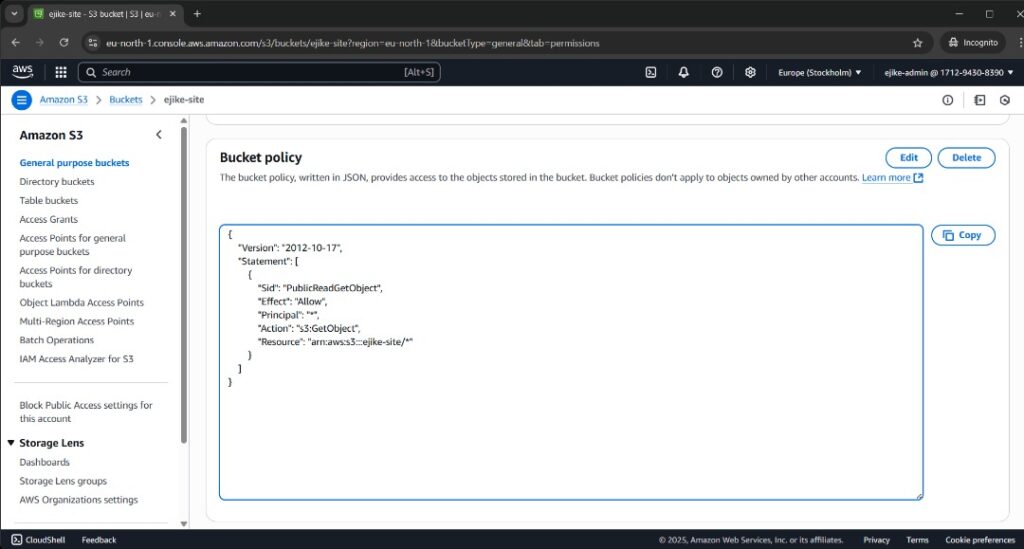
First, I created an S3 bucket and enabled static website hosting. Then, I attached a
JSON policy to the bucket to allow public access. Once the policy was applied,
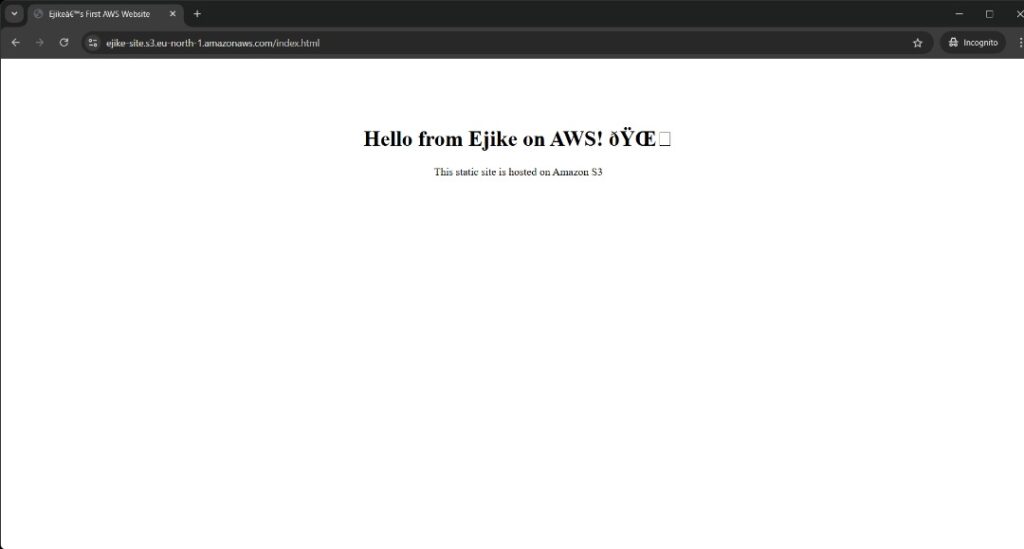
my simple index.html file went live, and my site was ready to view.
The Technical Steps
Now, I’ll walk you through the exact steps I took to get my website live,
complete with images of the AWS Console.
Step 1: Log In and Go to the S3 Dashboard
The first thing you need to do is log into your AWS account. Once you are logged in,
use the search bar at the top of the screen to find the S3 service.
Step 2: Create a Bucket
From the S3 dashboard, you will be able to create your bucket.
Give your bucket a unique name.
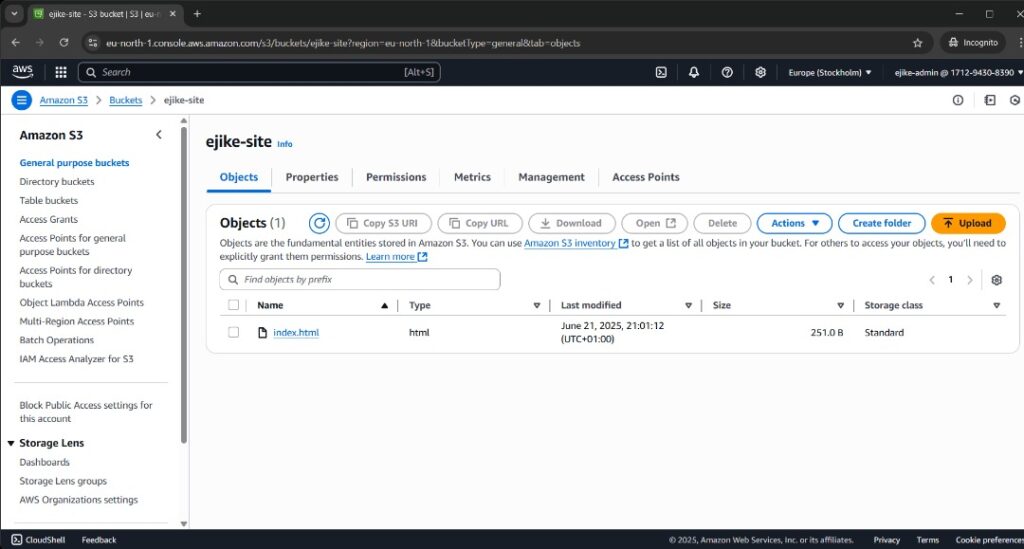
Step 3: Upload Your File
Once your bucket is created, you can upload your static website files to it,
including your index.html file.
Step 4: Enable Static Website Hosting
Navigate to the bucket properties and enable static website hosting.
You will also need to apply a JSON policy to your bucket to make your
website publicly accessible.
Step 5: Your Site Is Live!
After applying the policy and saving your changes, your website will be live!
You will get a URL from AWS that you can use to view your site.
You’ve now successfully deployed a static website on Amazon S3.
I encourage you to try this project out for yourself! Once you’re done,
come back and click on my profile to find more projects
and continue your cloud journey.